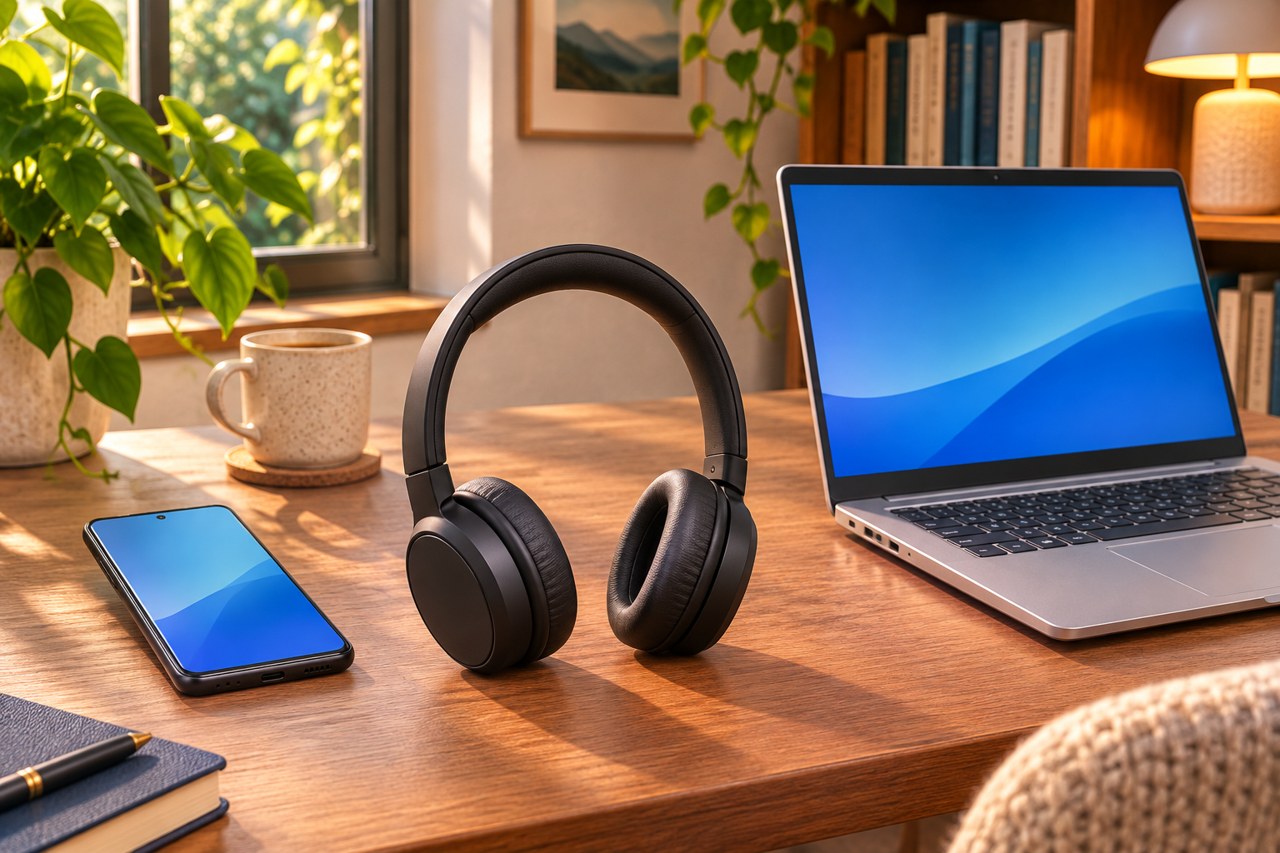
Pair your Sony WH-CH520 headphones with both devices, turn on Connect to 2 devices simultaneously in Sony | Sound Connect on your phone, then reconnect the PC. This is Bluetooth multipoint: the headphones can stay connected to both devices, but they play audio from only one at a time.
AI illustration: Generic on-ear headphones beside a phone and laptop. Not a product photo.
What you need
- Charged Sony WH-CH520 headphones
- Android phone with Sony | Sound Connect
- Windows 11 PC with Bluetooth
Steps
-
1. Pair the headphones with your Android phone
Charge the headphones and keep them within about 3 feet of the phone. New headphones enter pairing mode when you turn them on. If they’ve already been paired before, hold the Bluetooth button for about five seconds or longer until you hear the pairing prompt. On Android, open Bluetooth settings, choose the option to pair a new device, and tap WH-CH520. If the phone already has the headphones saved, select that entry to connect instead.
See Sony’s WH-CH520 Android pairing guide if your phone doesn’t list them.
-
2. Pair the headphones with Windows 11
Hold the headphones’ Bluetooth button again until you hear the pairing prompt. On the PC, open Settings → Bluetooth & devices, turn on Bluetooth, then choose Add device → Bluetooth → WH-CH520. The phone may disconnect when you pair the PC; that’s fine at this stage. If Windows already lists the headphones as paired, you can skip adding them again.
See Sony’s Windows 11 pairing instructions for Swift Pair and the manual option.
-
3. Turn on multipoint in Sony | Sound Connect
Reconnect the headphones from Android’s Bluetooth settings if needed. Open Sony | Sound Connect, select your headphones and turn on Connect to 2 devices simultaneously. The manual still uses the app’s former name, Sony | Headphones Connect. On the PC, select the saved WH-CH520 entry in Bluetooth settings to connect again if Windows hasn’t done so.
See Sony’s WH-CH520 multipoint guide for the connection order.
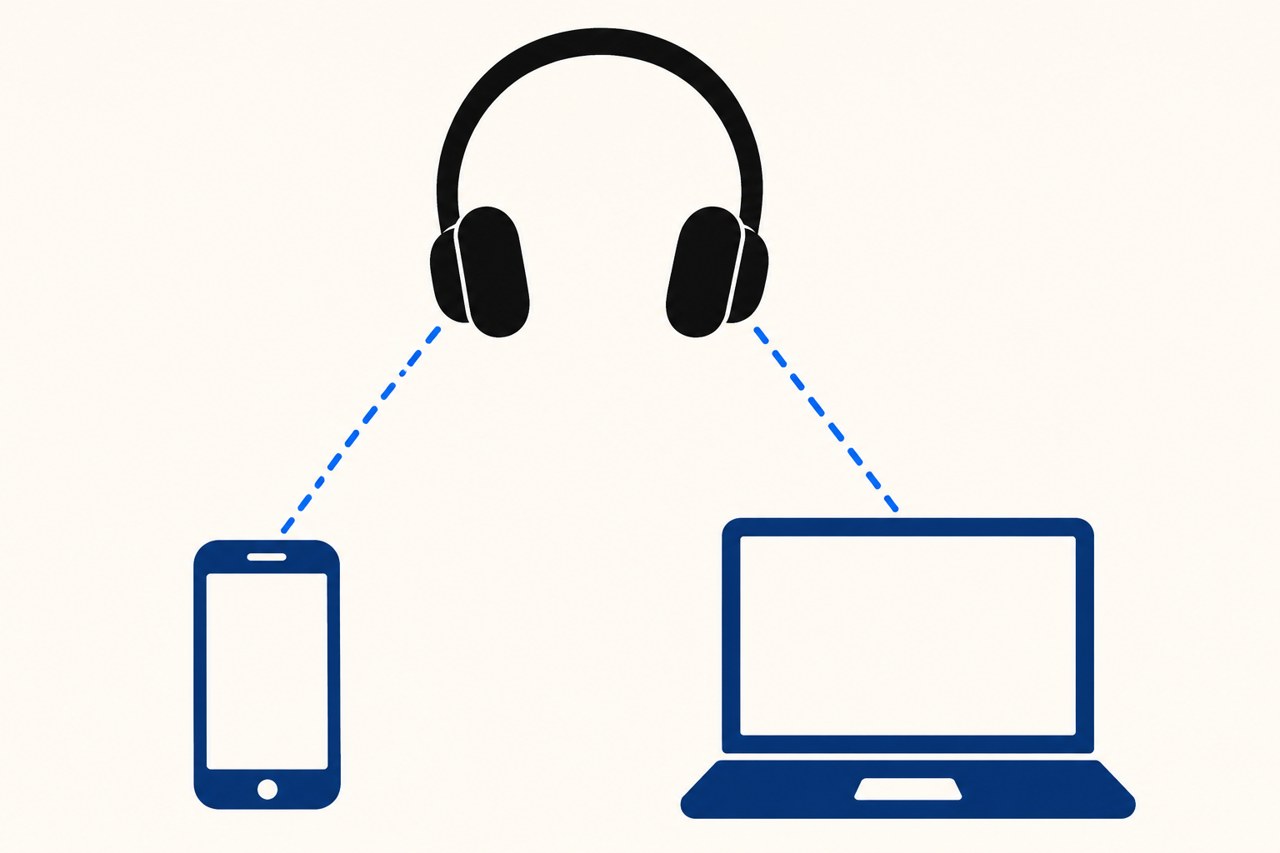
AI illustration: Multipoint connects the headphones to two devices, but plays one audio source at a time. -
4. Test the audio handoff
Play a short clip on your phone and confirm you hear it in the headphones. Pause the clip, then play audio on the PC. If it comes through the PC speakers, go to Settings → System → Sound and choose the WH-CH520 under Output. For a call, also check the microphone and speaker choices inside the meeting app.
Both devices can remain connected, but multipoint doesn’t mix their audio.
-
5. Fix a connection that won’t switch
If both devices show connected but the second one is silent, stop playback and close the app on the first device. Sony notes that some apps can keep sending a silent audio signal. Check that multipoint is still enabled and that the second device is using the WH-CH520 as its audio output. If you recently connected a third device, disconnect it and reconnect the phone and PC. See Sony’s WH-CH520 no-sound troubleshooting for more checks.
Do I need to pair both devices every time?
No. Once both are saved, select the headphones in Bluetooth settings if a device doesn’t reconnect automatically.
Can I keep three devices connected?
No. The WH-CH520 remembers up to eight pairings, but only two devices can be connected at once with multipoint.
Prefer open-fit earbuds? Read the AirPods 4 ANC review and battery trade-offs.