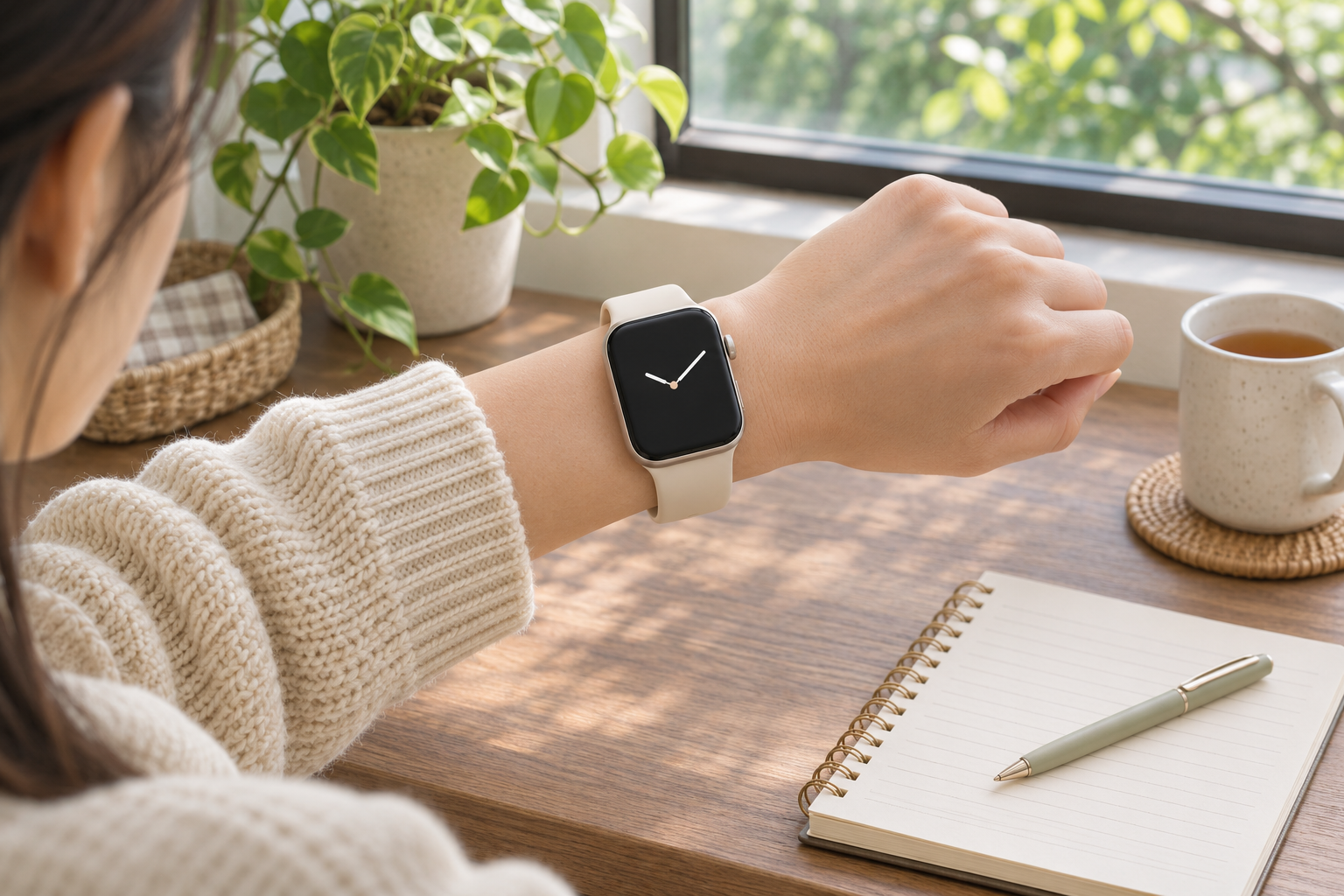
To save battery on Apple Watch SE 3, start by turning off Always On under Settings → Display & Brightness. For a long day away from the charger, turn on Low Power Mode from the battery percentage in Control Center. Try the display setting first if you want the watch to keep its usual background measurements and notifications.
AI illustration: A smartwatch on a raised wrist. This is a generic illustration, not an Apple product photo or screenshot.
What you need
- Apple Watch SE 3 with enough charge to open Settings
- Optional: a charger for a quick top-up instead of limiting features
Steps
-
Start with the display. Press the Digital Crown to open your apps, then tap Settings → Display & Brightness → Always On. Turn it off and lower your wrist. When the screen goes dark, raise your wrist or tap the display to check it again.
-
Use Low Power Mode when you need more time. Press the flat side button once to open Control Center. Tap the battery percentage, then Low Power Mode. If you don’t see the battery button, go to Settings → Battery on the watch instead.
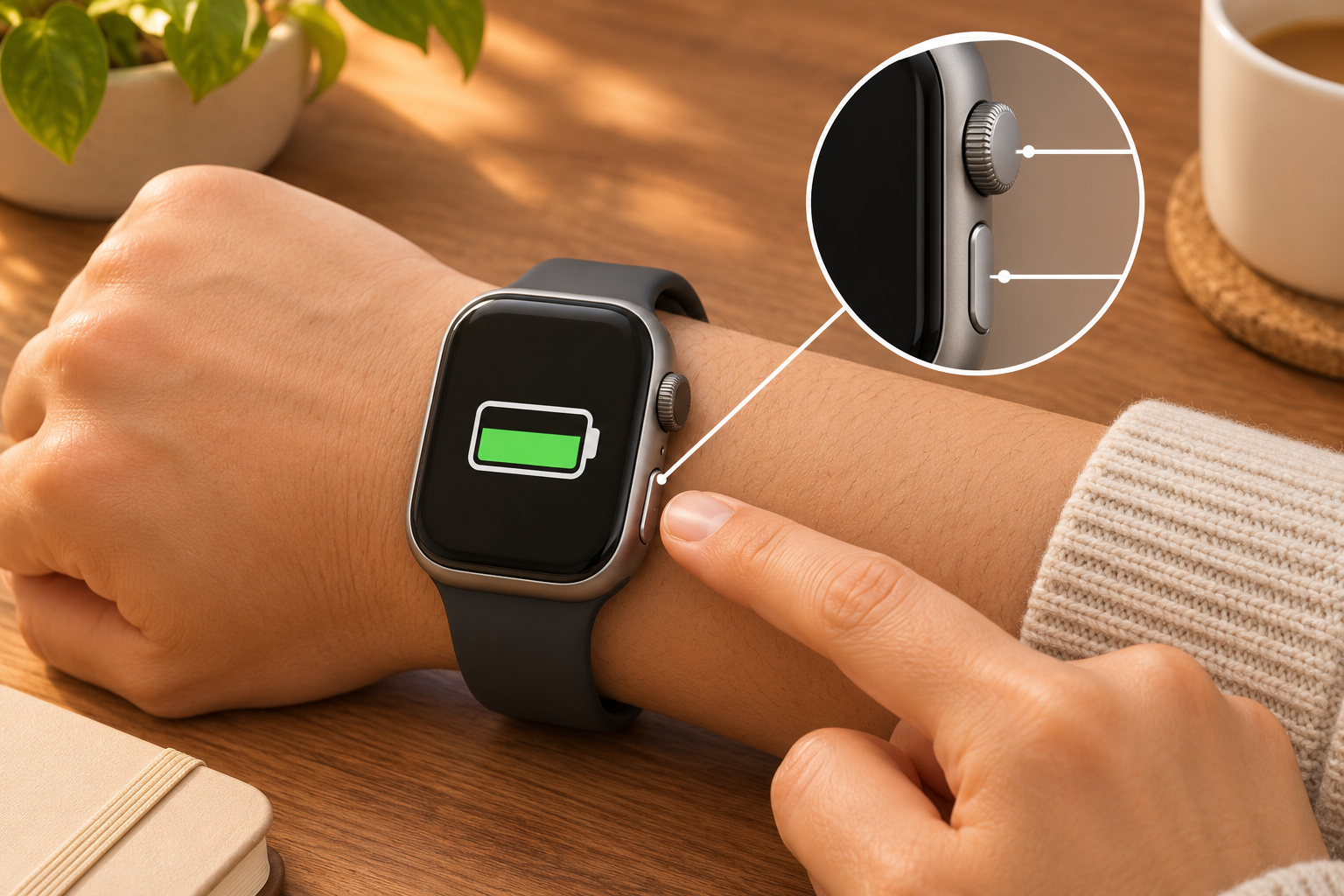
AI illustration: The flat side button, separate from the round crown. The battery symbol is illustrative, not a watchOS screenshot.
-
Confirm and check the yellow icon. Read the notice and tap Turn On. You can choose Turn On For if you want a set number of days. A yellow circle at the top of the screen confirms the mode is on. Apple says the mode turns off at 80% charge unless you selected a duration.
-
Go back to normal when you’re near a charger. Press the side button, tap the battery percentage and switch off Low Power Mode. If you turned off Always On separately, switch it back on under Display & Brightness. If the screen still stays dark when your wrist is down, check that Theater Mode is off.
When should I stick with just the display setting?
Use that smaller change if you rely on your watch for background heart-rate measurements or alerts. Low Power Mode pauses some measurements and alerts, and can delay other notifications. If you’re waiting on an important call or alert, charge the watch when you can rather than relying on Low Power Mode.
Does this work on an older Apple Watch SE?
The earlier Apple Watch SE models don’t have the Always On display. Use the Low Power Mode steps on a supported watchOS version; you can skip the display toggle if it isn’t listed.
Sources
Related: Check why your phone is charging slowly before replacing the charger.