
AI-generated illustration: A guest arriving at a home with a mesh Wi-Fi router.
Open the Deco app and go to More > Guest Network. Turn it on, give it a distinct name and password, then test it from a second device. In Router mode, Deco separates the guest network from the main network automatically. In Access Point mode, check that Allow Local Access is off if it appears under Advanced.
This guide is for an existing home Deco network that you manage. Menu labels and available options vary by Deco model and firmware.
If the guest network does not work
- It does not show up: Check that Guest Network is still on. If you selected a timer, it may have expired. If your Deco offers a band setting, include 2.4 GHz for older devices rather than choosing only a newer band.
- The password is rejected: Forget the guest network on the test device, then join again using the current password. On models that offer it, WPA2 can help with older devices that do not support WPA3.
- Wi-Fi connects but the internet does not: First check that the main network has internet access. Then check the guest network near the main Deco. If it works there but not near a wired satellite, consult TP-Link’s guide for switches between Deco units.
Common questions
Can guests use my printer or cast to my TV?
A guest on an isolated network generally cannot reach devices on the main network. If you need a visitor to use a particular shared device, check its guest-sharing options rather than enabling access to the entire main network.
Do I need to change my main Wi-Fi password?
No. Add a separate guest password and leave your existing devices on the main network. If you already shared the main password and want to revoke it, that is a separate change and will require reconnecting your household devices.
Sources
What you need
- A working TP-Link Deco network
- A phone with the Deco app and management access
- A second phone, tablet, or laptop for testing
Steps
-
Open the guest network settings
On a phone with access to manage your Deco, open the Deco app. Select the household network if you manage more than one. Tap More, open Guest Network, and switch it on.
-
Set a guest name, password, and duration
Pick a name guests can recognize, such as Maple House Guest. Choose a password different from the main Wi-Fi password and select password-protected security. If Duration is available, pick a time that covers the visit or leave it on and turn it off afterward.
-
Keep the main network separate
Check the operation mode under More > Advanced > Operation Mode if you do not know it. In Router mode, TP-Link says the two networks are isolated. In Access Point mode, go back to Guest Network > Advanced and leave Allow Local Access off if shown. If you cannot verify that setting, check your model’s documentation before relying on isolation. Save the changes if the app prompts you.
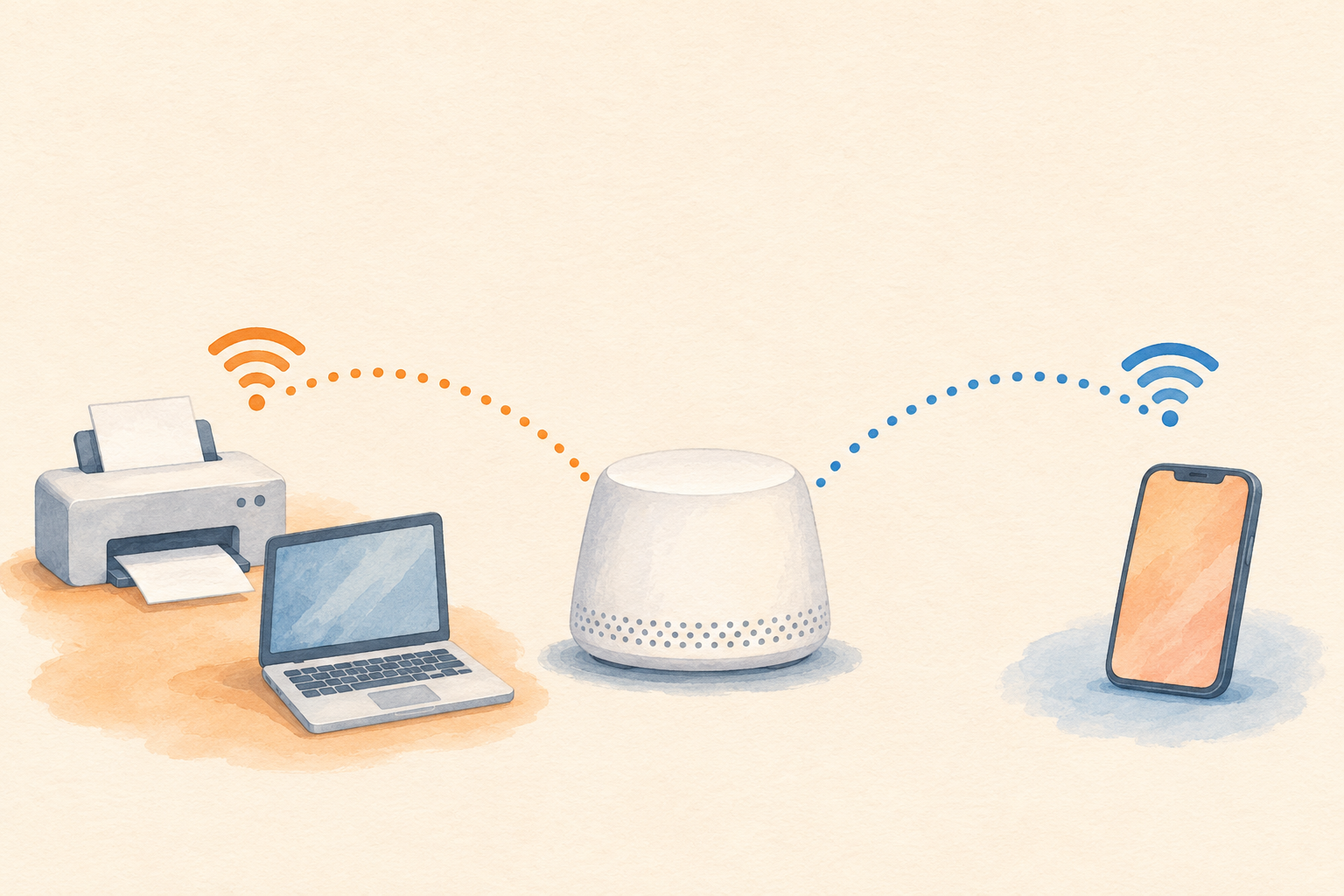
AI-generated illustration: The guest phone and household devices are on separate Wi-Fi networks. -
Test it and share only the guest network
On another device, select the new guest name. Temporarily turn off mobile data if it is a phone, then open a website to check that Wi-Fi is providing internet access. If you normally use a local printer or file share, try reaching it from the guest device and verify it is not available. Share only the guest details using the app’s sharing option if offered, or give visitors the guest name and password directly.