
To write a useful AI prompt, say what you want done, give only the relevant context, specify the shape of the answer, and review the result. You do not need clever jargon. A clear request and one thoughtful follow-up are a practical place to start.
If you have ever asked a chatbot for help and received a long answer that missed the point, this guide gives you a smaller, more manageable approach. In about 15 minutes, you will draft and refine a prompt for a low-stakes household task. This is a source-based tutorial, not a report of hands-on testing or guaranteed results.
Hero: AI-generated generic illustration of a planning desk and chatbot, not an actual app screenshot.
What you need
- A phone or computer with an AI chat tool you already have permission to use; no paid upgrade is needed for this exercise
- A few non-sensitive notes about one simple task, plus a notes app or paper for your final prompt
Steps
-
Choose one small job
Start with something you can judge yourself, such as turning a list of craft supplies into a tidy-drawer checklist. Write the action first: “Make a checklist” is clearer than “Help with organizing.” Keep medical, legal, financial and safety-critical decisions out of this practice exercise.
Give yourself a finish line: a short list you can review, not an entire life-organizing system. Microsoft recommends making the goal clear and adding useful context, expectations and source material when needed.
-
Add context without sharing private information
Tell the tool the few details that change the answer: the available time, what you already have and what you want to avoid. For the drawer example, list paper clips, tape and spare pens, and say that you want to reuse containers rather than buy supplies.
Do not paste passwords, account numbers, private conversations or confidential work documents. Check the tool’s privacy rules before sharing anything personal; use invented practice notes instead if unsure. Grant no extra device or file access for this exercise. For a separate phone privacy check, see our guide to reviewing Android app permissions.
-
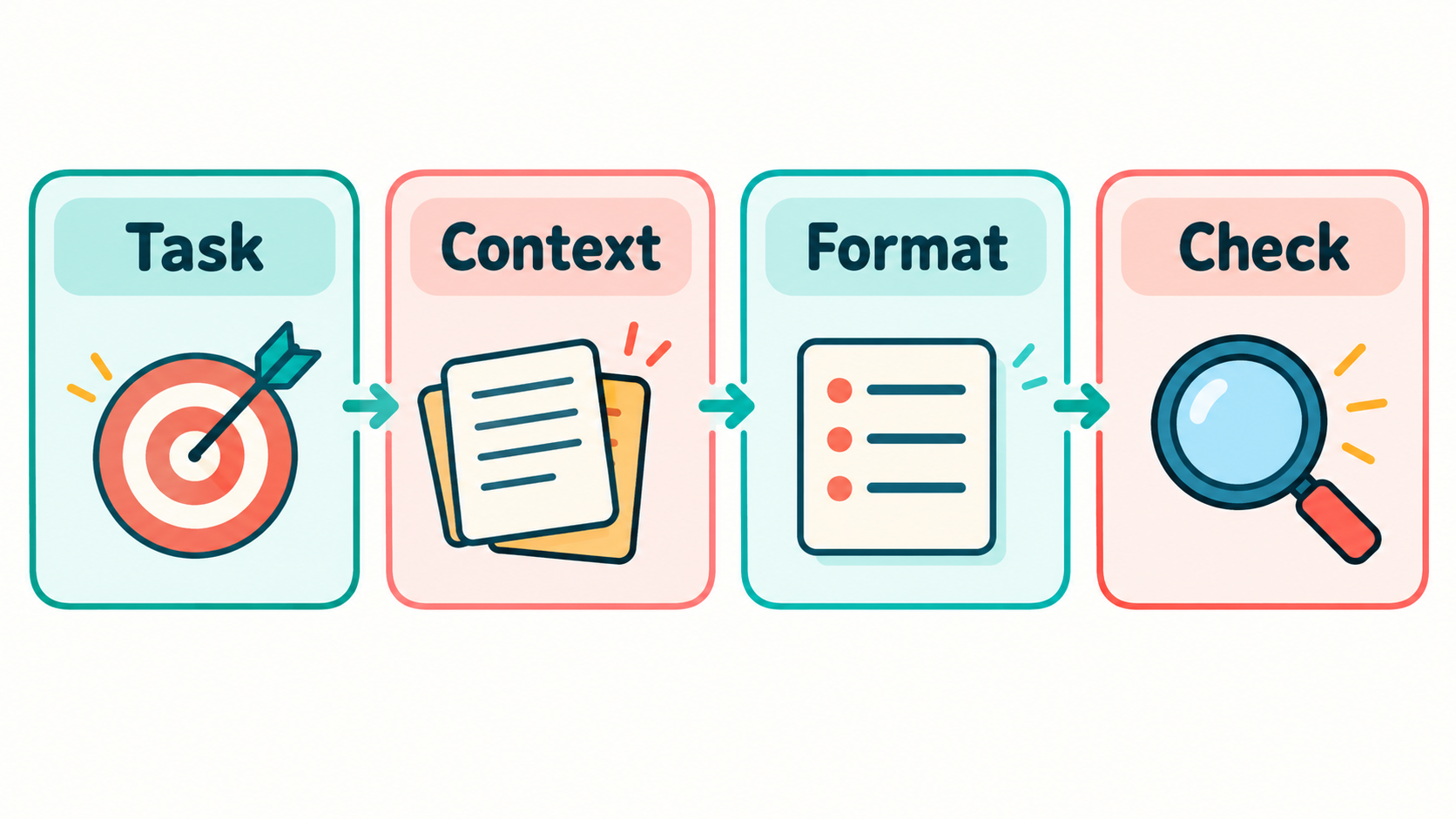
AI-generated illustration: define the task, add context, choose a format, then check the result. Not an app screenshot. Specify the response format and write your prompt
Ask for a format you can use: five bullets, a short checklist or a two-column table. Add a length limit if a long answer would get in the way. Separate any notes from your instructions with a clear label. Google’s prompting guidance recommends clear instructions and explicit response formats.
Here is an original practice prompt, not a tested result:
Make a five-bullet checklist for tidying one stationery drawer in 15 minutes. I want to reuse containers I already have and buy nothing. Notes: loose paper clips, two rolls of tape, spare pens and empty small boxes. Use only these notes; do not assume drawer measurements. Keep each bullet under 20 words. If an important detail is missing, ask me one question before suggesting a plan.
Read it once before sending. Asking the model not to assume details helps state your intention, but does not guarantee that it will comply.
-
Send it, then refine one thing at a time
Paste your prompt into the chat box and send it using the tool’s normal send control. Read the answer before asking for more. Does it stick to your supplies, time limit and requested length?
If it wanders, name the specific problem: “Remove the shopping suggestions. Rewrite this as five actions using only my listed items.” If it is vague, ask for a concrete next action. If it guesses a measurement, correct that assumption rather than treating the number as a fact.
You can revise the original request or send a follow-up in the same conversation. Avoid piling on unrelated jobs; start a fresh conversation when changing topics.
-
Check the answer and keep a reusable version
Compare every useful suggestion with your actual situation. Check any factual claim against an authoritative source, opening the cited page yourself. A confident answer or a plausible-looking citation is not proof. Google warns that generative AI can present inaccurate information as fact.
Save the wording that helped in your notes, replacing the drawer details with placeholders such as [task], [available items] and [format]. Review those placeholders each time. Do not save sensitive material in a shared template.
Quick troubleshooting
- Too long? Request a specific number of bullets and a shorter maximum length.
- Wrong assumptions? State the missing constraint and ask for a revision.
- Still unreliable? Stop using the answer. A better prompt cannot make every task reliable.
Common questions
Do I need a special formula? No. Task, context and format are a useful checklist, not magic words.
Can the AI check its own answer? It can help identify possible issues, but another AI answer is not independent verification. Check important claims yourself.
Should I buy a prompt pack? Nothing needs to be purchased for this exercise. Start with your own small task and plain language.
Sources and topic selection
- Microsoft: write a great prompt — goal, context, sources and expectations.
- Google: prompting strategies — clear instructions, formats and iteration; technical documentation used here only for general principles.
- Google: tips and limitations for Gemini Apps — accuracy and verification cautions.
Trend note, checked October 25, 2026: TikTok Creative Center’s US hashtag trends, with “Last 7 days” and Food & Beverage selected, displayed #aitutorial at 1.2K posts and 1.3M views. Its public trend line rose into the latest displayed point, rather than ending in a falling spike. This is a platform social-activity signal, not search-interest growth or proof of demand for this exact guide. The small chart provides no numeric growth rate; none is claimed.