Create one shared sheet with a row for each dish, then invite guests to claim a row. A simple Category, Dish, Servings and Name grid helps you spot three desserts and no side dishes before dinner day.
Hero: AI-generated illustration, not a Google Sheets screenshot.
Allow about 15 minutes of active setup, plus time for guests to reply. These desktop-browser instructions need no formulas, paid template or add-on. They are based on Google documentation, not a hands-on product test.
Why this topic now?
Checked November 13, 2026: Pinterest Trends, United States, reported Friendsgiving Party Ideas Pin saves up 100% versus last month. Its indexed saves chart (0–100), displayed from August 18 to November 10, rose through the latest plotted point. This is growth in Pinterest saving activity for a broad hosting topic, not Google search interest or proof that potluck spreadsheets specifically are trending.
What you need
- Computer with a web browser and access to Google Sheets
- Guest count, dish categories and invited guests’ email addresses
Steps
-
Start a blank sheet and name it
Open Google Sheets in your desktop browser and choose a blank spreadsheet. Give it a recognizable name, such as Friendsgiving Potluck — November 2026. Decide how many guests you expect before assigning dish slots. Keep the file for meal coordination, not private addresses or medical information.
-
Build a four-column dish list
Enter Category in A1, Dish in B1, Servings in C1 and Name in D1. Start with rows for mains, sides, dessert and drinks; add more rows for the categories your meal needs. Guests fill in one dish per row rather than replacing someone else’s entry.
Example rows: Side | Green salad | 8 | Sam; Dessert | Cookies | 12 | Jo; Drinks | Sparkling water | 8 | Lee. These are fictional examples, not a recommended quantity for your group. Serving counts describe each contribution, not the total number of people fed by the whole menu.
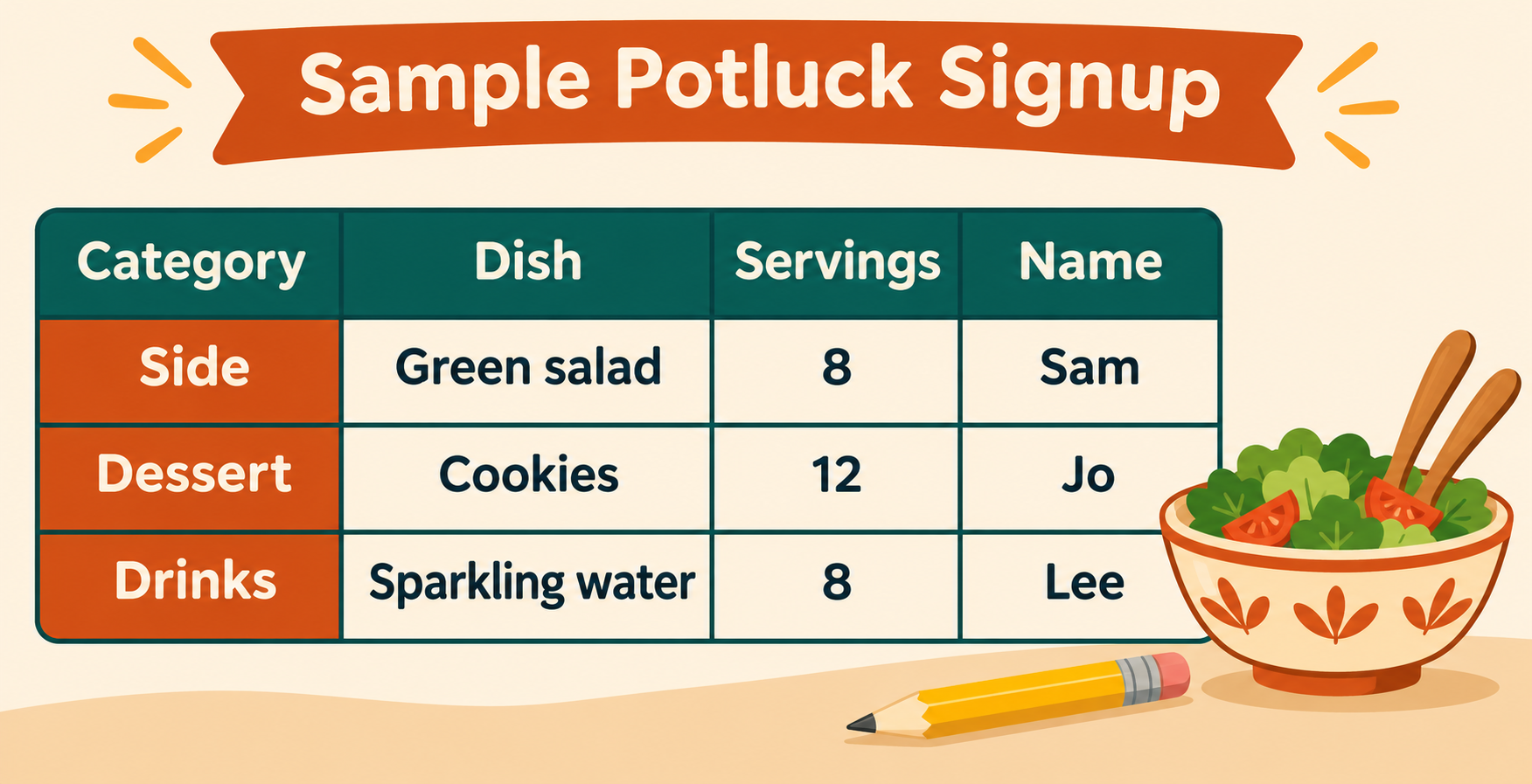
AI-generated illustration of a sample layout, not an actual software screenshot.
-
Keep headings visible and text readable
Select row 1 and choose View > Freeze > 1 row. The headings will stay visible while you scroll. Widen columns if names are cut off, and use the text-wrapping control for longer dish names. Keep one contribution on each row instead of merging cells. If you run out of space, right-click a row number and insert another row.
See Google’s freeze rows instructions and Sheets cheat sheet.
-
Invite only the guests who need access
Click Share, enter the intended guests’ email addresses and choose Editor if they should fill in their own rows, then Send. Review the recipient list before sending. For guests who should only read the plan, choose Viewer instead. Avoid publishing the sheet to the web or distributing an unrestricted editing link.
Ask guests to claim one row by a clear deadline and include a serving estimate. Keep allergy or other health discussions private with the host rather than recording personal medical information in the shared sheet. Google documents the access options in Collaborate in Sheets.
-
Review gaps and confirm the final plan
Before the deadline, look for empty categories, repeated dishes and portions that do not fit the guest count. Confirm the final menu with contributors. Ask separately about refrigeration, reheating and serving utensils; a filled-in sheet does not make food safe.
University of Minnesota Extension advises labeling buffet foods, providing serving utensils for each dish and monitoring holding temperatures. Its potluck guidance limits cumulative room-temperature exposure to two hours. Consult its safe serving practices when planning the meal.
Troubleshooting and common questions
A guest cannot edit: Check that you invited the correct email address with Editor access and that they opened the file with that account. Do not solve this by making the whole sheet public.
Someone overwrote a dish: Ask the contributor to confirm the intended entry. Google Sheets provides File > Version history > See version history to review earlier edits. Review carefully before restoring, since restoring an older version can also undo newer correct entries.
Do I need formulas? No. For a small gathering, a plain grid is enough. Do not add all serving numbers and assume they represent complete meals; eight servings of salad and eight cookies do not feed sixteen people dinner.
Can I use paper instead? Yes. Use the same four headings on a page and have one host collect replies. The useful part is one agreed list, not a particular app.
Can guests record dietary needs? Handle personal health details privately. Label dishes accurately and check requirements directly with the people concerned; a spreadsheet label is not an allergy-safety guarantee.
Plan the cleanup too: how to pack Friendsgiving leftovers for the fridge and freezer covers the next part of hosting.